
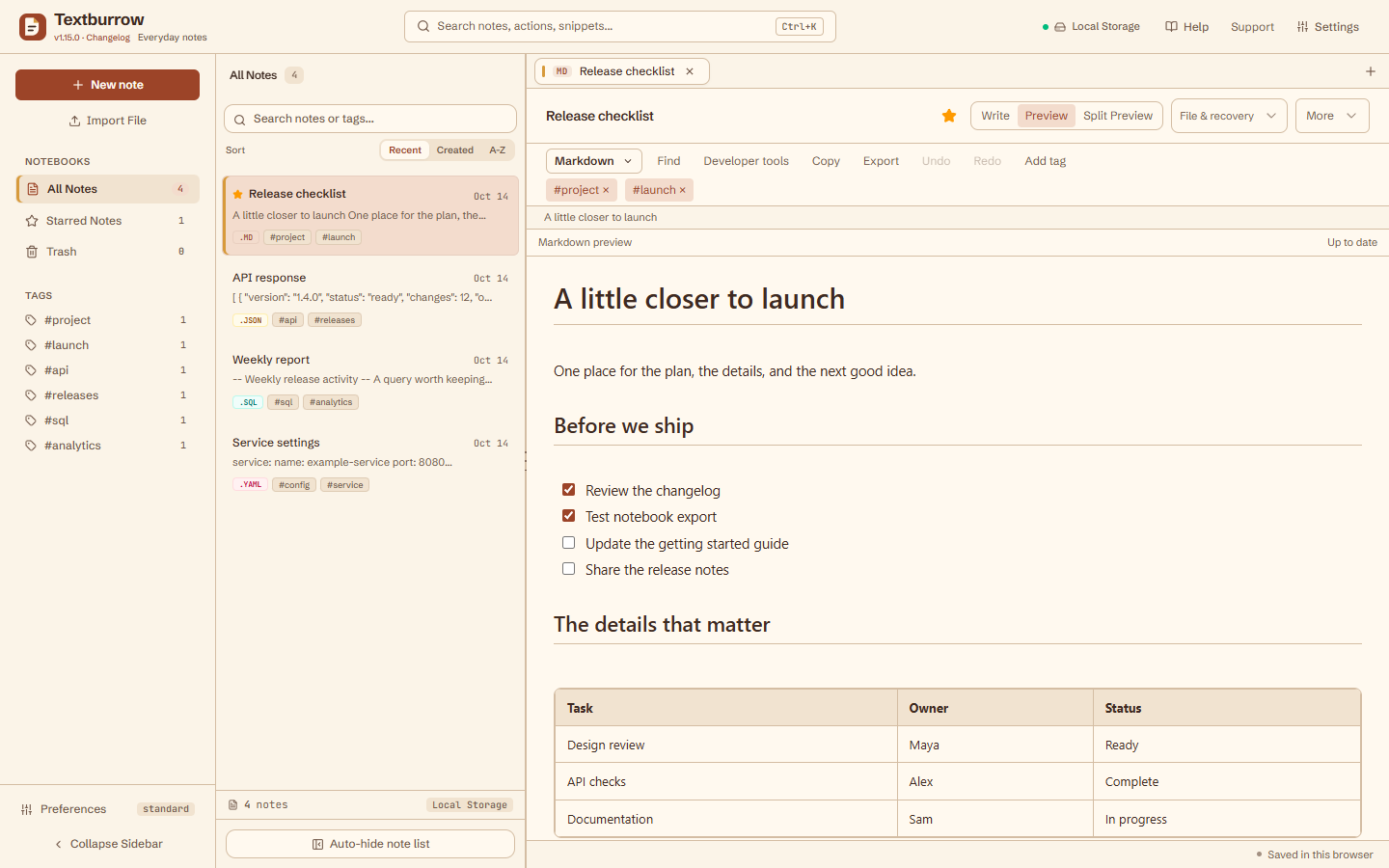
Write it down before you forget.
Use Markdown for notes, lists, and tables. Add a tag or star a note so it’s easy to find later.
Markdown editor
Before the release
Generate file and folder checksums with 48 algorithms, select file types, and save batch reports to your notebook. Create UUIDs, encode Base64url, or convert and inspect data locally.
All developer tools Copy a result, download it, or save it to your notebook.
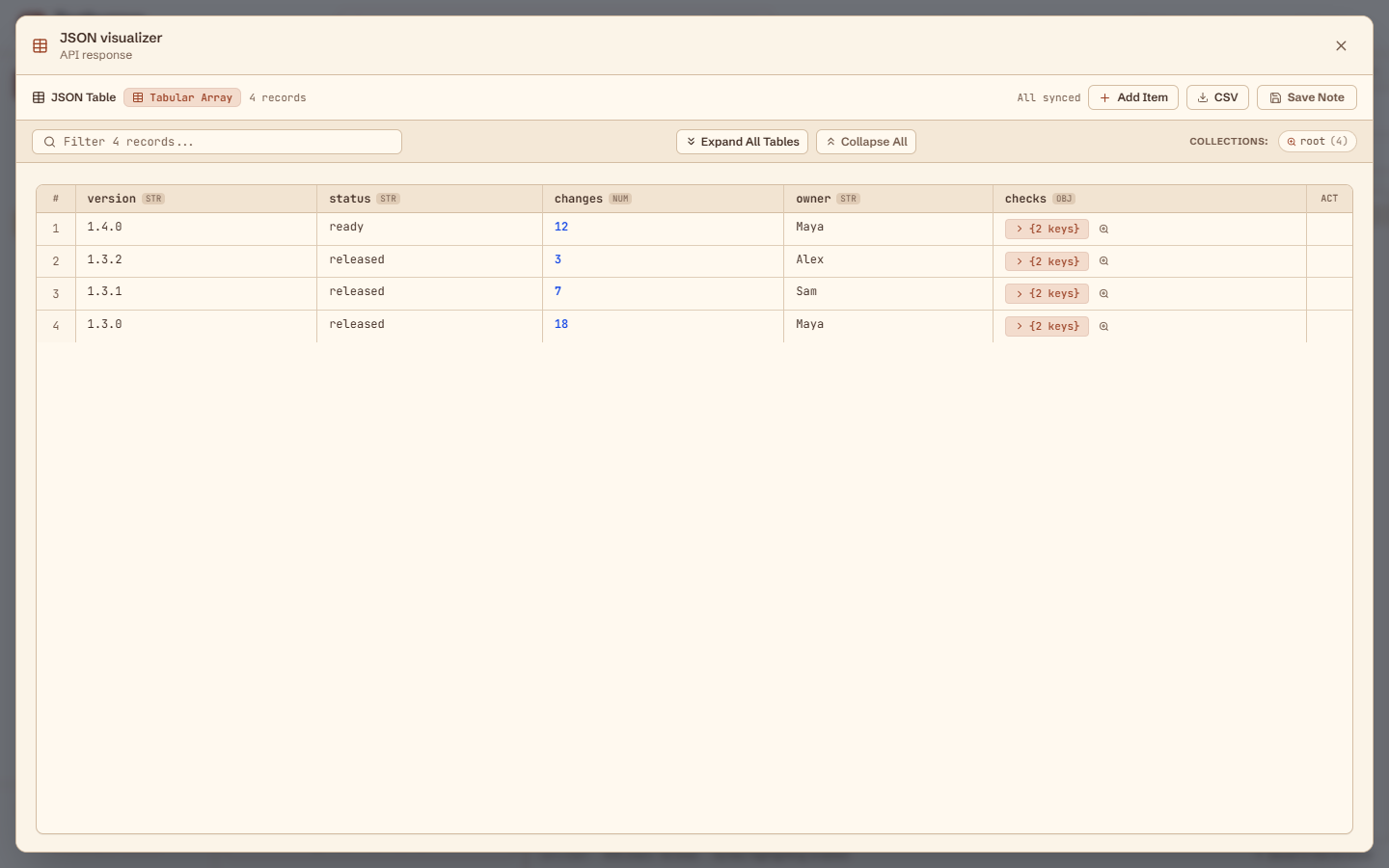
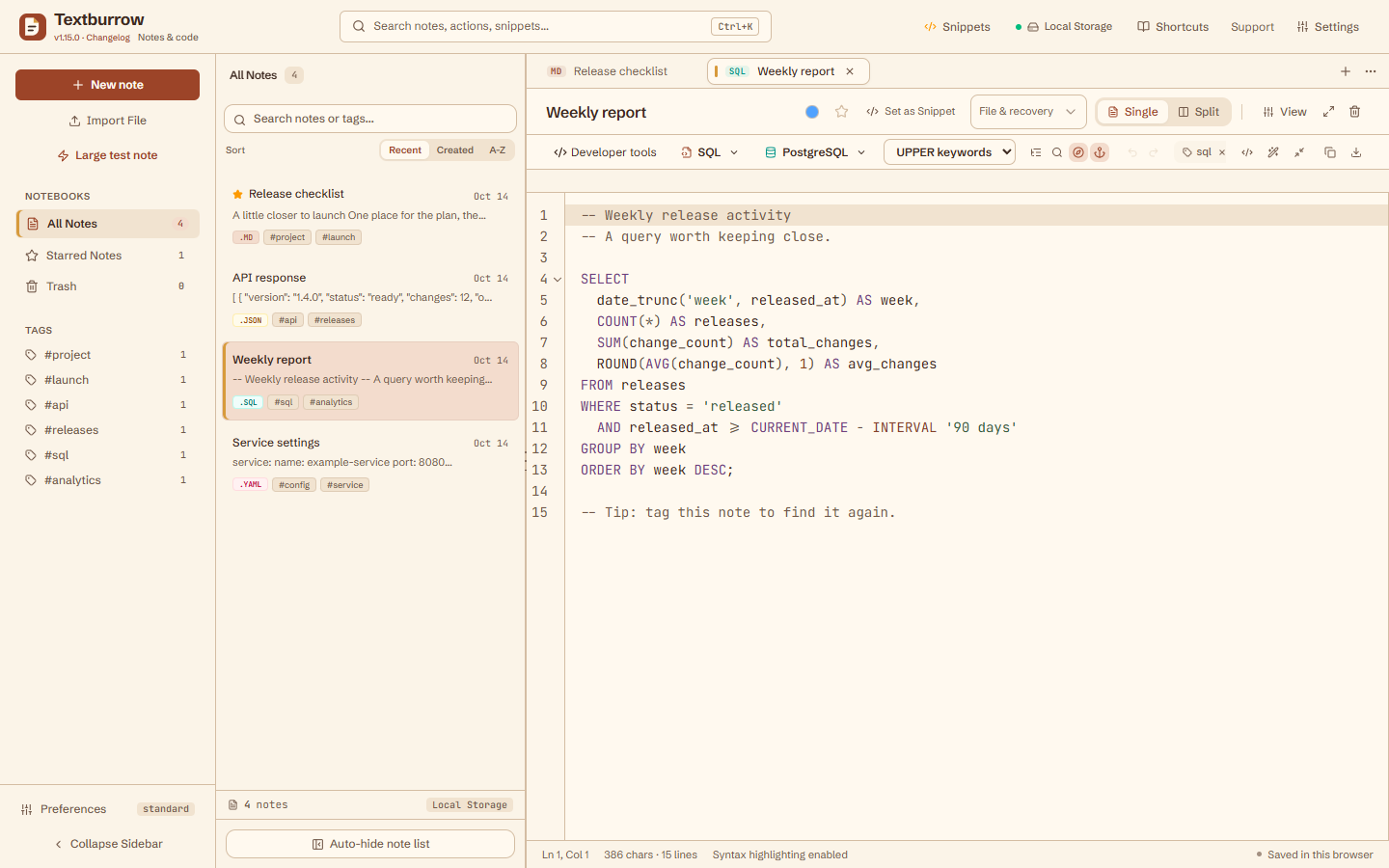
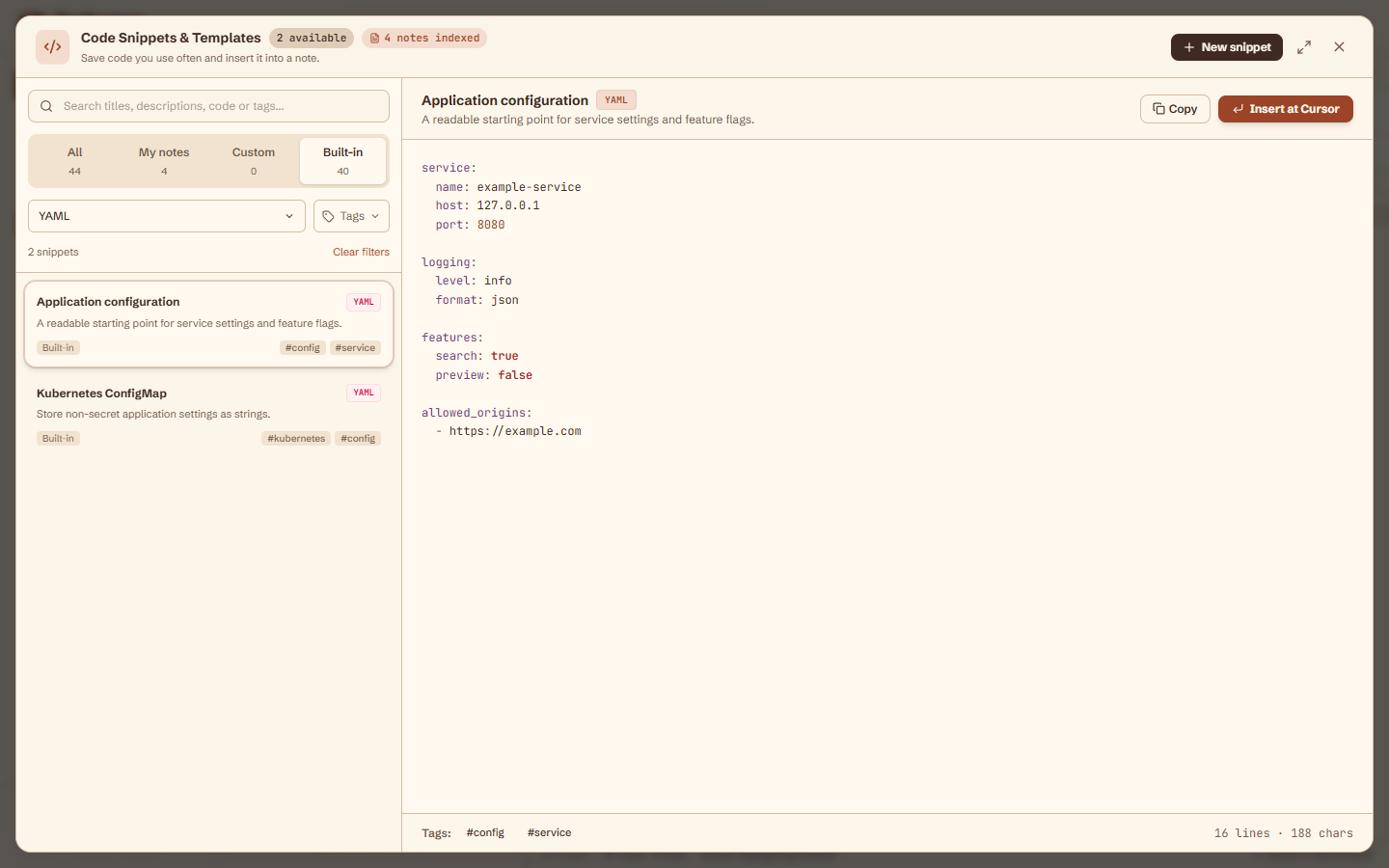
Real app screenshots with sample notes. Select one for a closer look.
Write notes, tidy up a query, or check what changed in a file.
Use Markdown for notes, lists, and tables. Add a tag or star a note so it’s easy to find later.
Markdown editorTurn an API response into a table. Filter rows, explore nested values, and export to CSV.
JSON editor[
{ "version": "1.4.0",
"ready": true },
{ "version": "1.3.2",
"ready": true }
]| version | ready |
|---|---|
| 1.4.0 | true |
| 1.3.2 | true |
Keep queries, scripts, and config files alongside your notes. Choose from 19 language modes and reuse your favorite snippets.
SQL editorSELECT week,
COUNT(*) AS releases
FROM releases
WHERE status = 'released'
ORDER BY week DESC;Compare text side by side. See what changed in a config, a query, or the next draft.
Text comparison guiderelease: 1.3.2
− status: draft
checks: passed
release: 1.4.0
+ status: ready
checks: passed
Your notes stay in this browser, on this device. Editing and data tools run locally, with no cloud note storage.
Download a notebook backup to keep a copy or move your notes to another browser.
How your notes stay privateClearing this site’s browser data removes saved notes. Keep a backup of anything you need.
Try an editor with a ready-to-use example, or find tips for your next task.
A plain text editor for a quick thought, a pasted log, or a longer draft. Your notes save locally.
Write a README or a checklist, then preview headings, tables, and fenced code.
Format a response, explore it as a table, edit values, and export rows to CSV.
Keep queries readable with PostgreSQL, MySQL, SQLite, BigQuery, and other dialects.
Keep Java, C#, PowerShell, JavaScript, Python, SQL, and other snippets together across 19 editor modes.
Set up offline editing, understand browser saving, and keep a backup you can move.
How saving, backups, and offline access work.
No. It’s free, and you can start writing as soon as you open it. Choose Everyday notes for a simpler layout, or Notes & code if you want the code tools too. Both layouts let you choose and search for a note’s language.
No. Textburrow has no note-upload service, cloud note storage, or account. Your notes save in this browser and the editing tools run on your device. Read how privacy, previews, and local backups work.
Your notes and settings are saved in this browser, on this device. They won’t appear in another browser or on another device unless you move them using a backup.
Yes. Open the app online first so it can save the files it needs for offline use. Once that’s finished, you can reopen it in the same browser without an internet connection. Supported browsers also let you install it as an app. Read the offline setup guide.
Yes. Alongside Markdown notes, you can save code snippets, format supported code and SQL, view JSON as a table, and compare text side by side.
There are 19 modes: Markdown, Plain Text, TypeScript, JavaScript, Python, SQL, JSON, HTML, CSS, Bash/Shell, C++, Rust, YAML, TOML, Go, Terraform/HCL, Java, C#, and PowerShell. Search the language chooser by name or file extension, such as .py, .yml, or .tf. Formatting is available for supported languages, including YAML and SQL. Explore the editors and language examples.
Open Settings → Backup & Restore to download a backup of your notebook. Import that file in another browser to move your notes. You can also download notes individually or export JSON tables as CSV.